 PawStyle Daily
Cute Pet Wallpaper 4K
Cat Wallpaper 4K for Desktop, Laptop and iPad
A cat wallpaper 4K pack built for the wide screens first: desktop monitors, laptops and the iPad’s squarer canvas, with the resolutions named as file sizes and the dock left a clear field. Every file is free to download at full size — no signup, no email, no watermark — and the layout rules stay the same across every size of screen in the house.
By PawStyle Daily · Updated 18 November 2026
Good to know: 1920x1080, 2560x1600 and 3840x2160 files · landscape and 4:3 canvases · dock-safe placement · full-size downloads, no signup.
Why the desktop pack is different
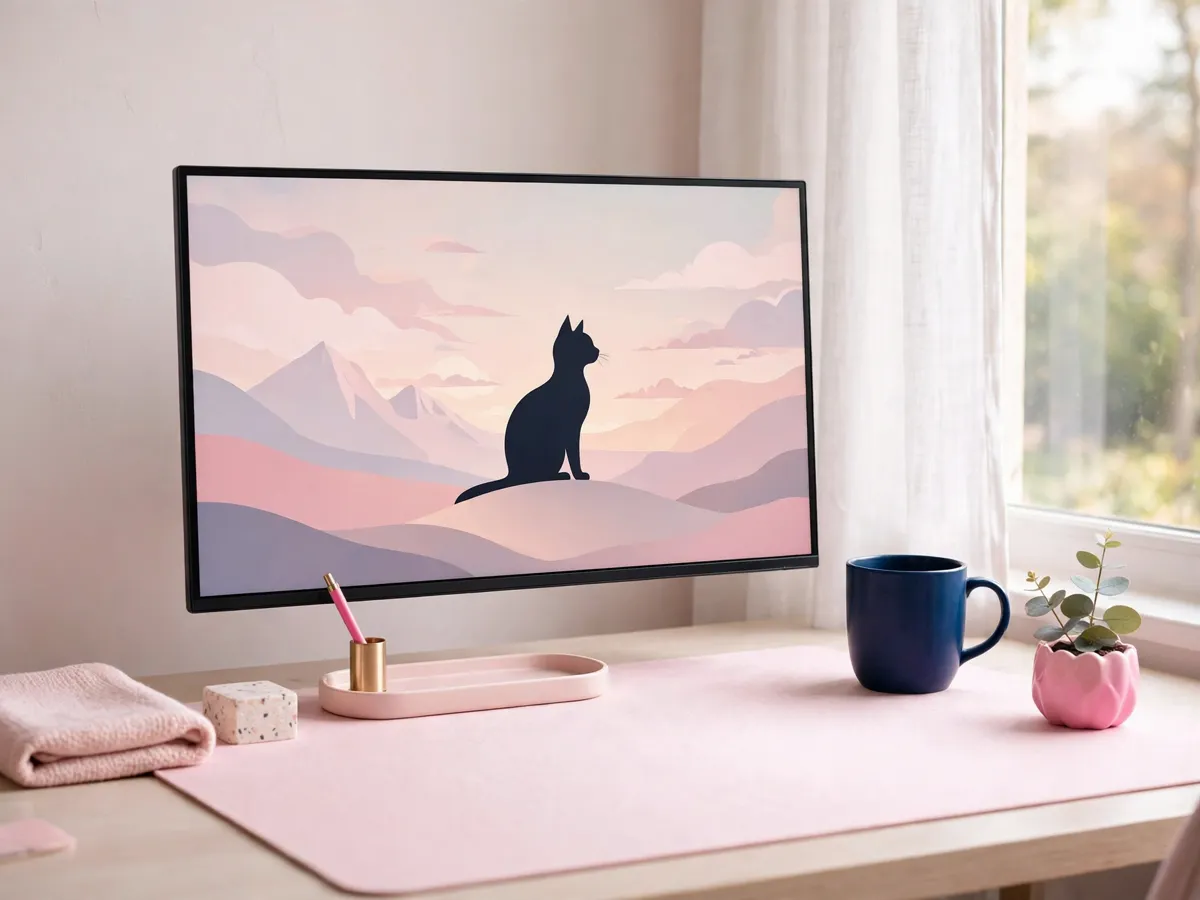
A desktop canvas lies on its side. The wallpaper on a phone runs tall and gets away with detail top to bottom; a desktop or laptop screen is a wide band, and the system furniture claims the edges — the dock eats the bottom, the menu bar eats the top, and the middle is the only stretch of wall the scene actually gets. That is why a pack built for the desktop starts from the layout and not the drawing: the cat sits where the band shows, and the rest of the file waits its turn.
Resolutions that do not crop the face
Three file sizes cover the screens in the house: 1920x1080 for the laptop and the standard monitor, 2560x1600 for the taller widescreen displays, and 3840x2160 when the monitor is the biggest thing on the desk. These are file specifications, named so the image arrives already shaped for the screen — the difference between a face that stays centered and a face the crop trims into a sliver.
Match the file to the native resolution of the screen rather than to the biggest number on the list. A file bigger than the display gets scaled down and stays sharp; a file smaller than the display gets stretched and turns soft. That single rule is the whole reason the pack ships in three sizes instead of one, and the same rule travels to the phone: a portrait file built for 1080x1920 belongs there, not here.
Where the dock sits
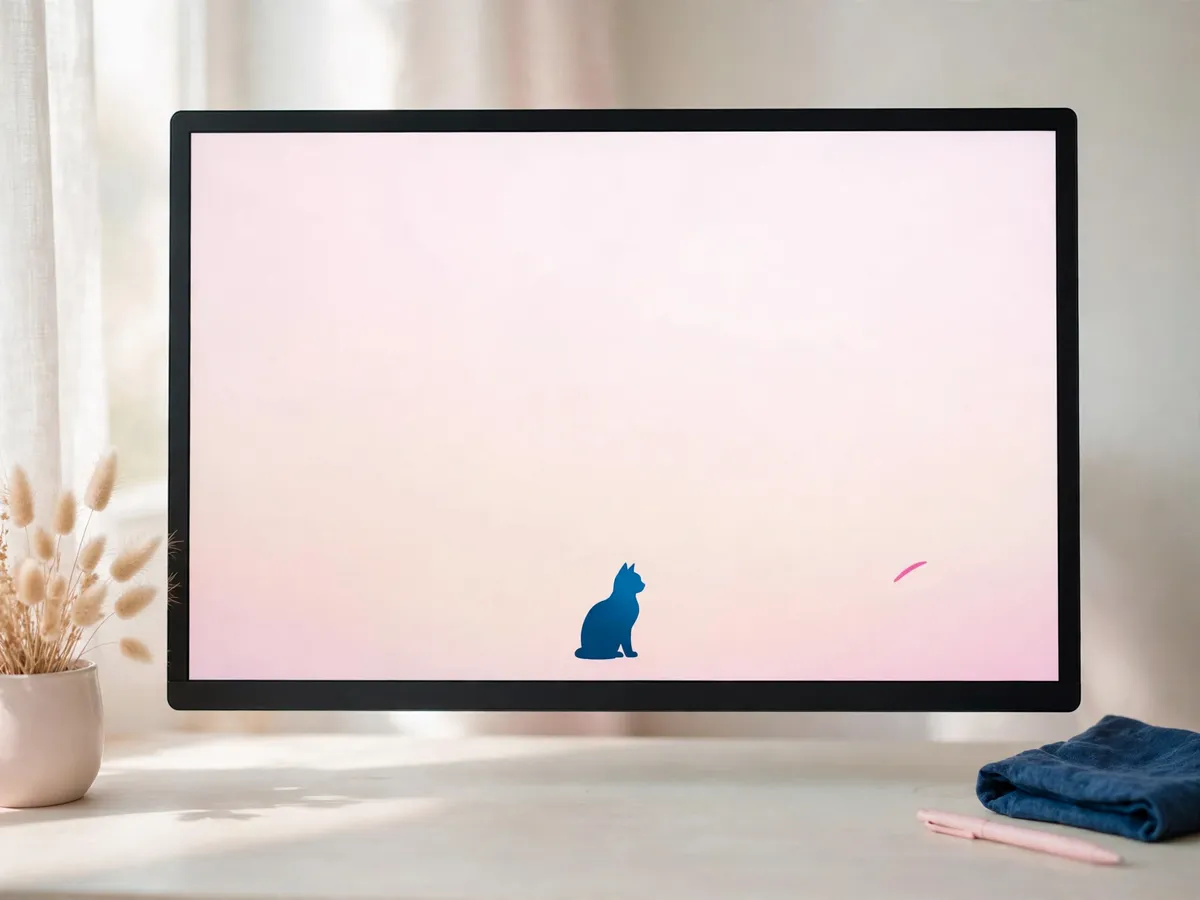
The bottom strip of a desktop screen belongs to the dock, and the top strip belongs to the menu bar, so the wallpaper only really shows in the middle band. A scene built for a desktop keeps the cat’s face center-left, away from the far edge where windows and widgets pile up, and leaves the lower third quiet enough that the dock icons never sit on top of the drawing.
The clock corner follows the same logic. Whatever corner holds the time on your setup does the best work over a plain patch of the image, which is one more reason the files here favor calm backgrounds over busy ones. If the cat lands where the clock lands, the wallpaper loses a little of the point.
The lower-third rule is worth saying plainly, because it is the one placement habit that survives every setup: keep the face and the drawing in the upper two-thirds of the file, and let the bottom third stay simple enough to live under a row of icons. Files that follow the rule work the moment they are set, on a work laptop and a gaming desktop alike, and never need the nudge-and-adjust pass after the fact.
Laptop vs external monitor
One image stretched across two screens reads soft on both, because neither display gets a file shaped for it. Give the laptop its own 1920x1080 file and the external monitor its own, matched to the native resolution of each, and both screens stay sharp. Matching the aspect beats matching the pixel count: a 16:10 laptop beside a 16:9 monitor wants two different files even when both are nominally high resolution.
iPad landscape and split screen
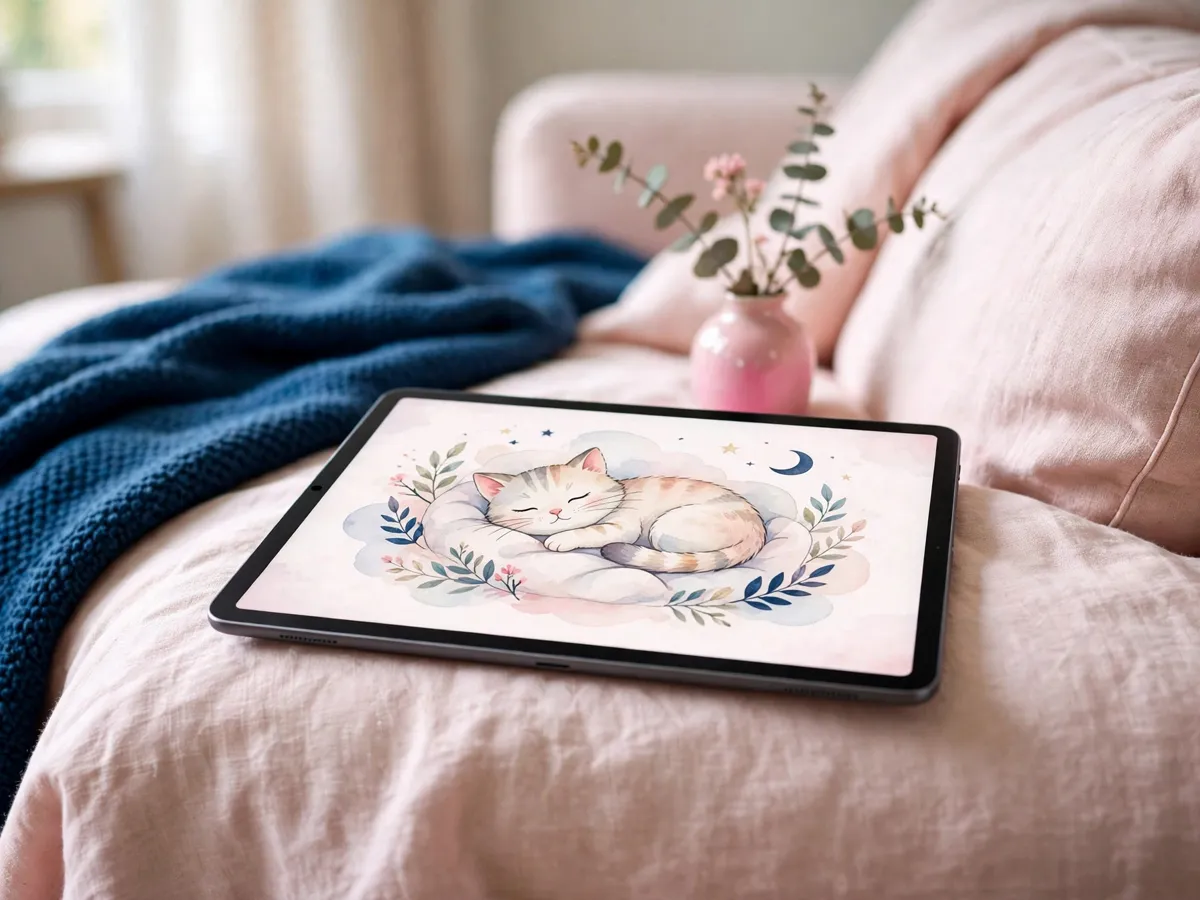
The iPad’s canvas is 4:3, squarer than a laptop and more forgiving than a phone, and the app grid sits over the wallpaper full-time. That grid is the reason a busy image loses here: a hundred icons fighting a detailed drawing turns the home screen into noise. A calm wash with the cat drawn small, off to one side, reads clean under the grid in landscape and holds up when the screen splits in two.
Aesthetic directions
Three directions cover the cat wallpaper 4K pc aesthetic and the moods around it: a pastel wash with the cat drawn in a single line, a navy field with cream stars, and a cozy desk scene where the cat sits beside the mug instead of on the keyboard. One direction per pack keeps the swap simple — change the whole screen at once rather than mixing moods across the days of the week.
Pick the direction the room already points to: a pale desk wants the pastel wash, a dark-mode setup wants the navy field, and the warm lamp-lit corner suits the desk scene. The styling moves with the season; the file specifications above do not.
Whatever the direction, run the squint test before the file becomes permanent: shrink the image down to a thumbnail and check whether the cat still reads as a cat. Detail that survives the thumbnail survives the desktop; detail that dissolves belongs in the pack only as a full-screen scene, where the drawing gets the whole canvas to itself.
Swap by season
The same layout rules carry a seasonal swap: change the scene, keep the dock-safe placement and the native resolution match. The Christmas cat wallpaper pack covers the winter season for phones, and the winter dog wallpapers ride along for the other side of the household. Between seasons, swap an aesthetic direction instead of the whole pack.
Download and set it
Save the file at the size that matches the screen: tap the image, save the full-size original, and set it as the desktop background from the display or personalization menu. No signup, no email, no watermark — the file is the whole transaction. If the result looks soft, the file and the screen disagree on resolution, and the sizes section above settles it.
On Windows, right-click the saved file and choose the set-as-desktop-background option, or open the personalization settings and pick the picture there. On a Mac, open the file, choose the share or action menu, and send it to the desktop picture setting. Either path lands the file at its native size; avoid the fit and fill menus until you have looked at where the cat sits, and switch the fill mode if the face slides under the clock.
For the iPad, the same steps apply once the ratio is 4:3: save the file, open it, and choose Set as Wallpaper from the share menu. The app grid then sits on top exactly as it does on every other background the screen has worn.
Questions about cat wallpapers for desktop and iPad
What resolution should a desktop cat wallpaper be?
1920x1080 is the baseline for a laptop or a standard monitor. Step up to 2560x1600 for a taller widescreen display, or 3840x2160 when the monitor is the biggest thing on the desk.
Will a phone wallpaper work on my laptop?
No. A phone file is tall and a laptop screen is wide, so the crop cuts the top and bottom of the scene and usually takes the face with it. Start from a landscape file instead.
Do I need to sign up for the pack?
No. Every file on this page is the full-size original: tap, save, set. No signup, no email, no watermark.
Can I use these on an iPad?
Yes. The iPad canvas is 4:3, squarer than a laptop and more forgiving than a phone, so the file fills the screen with no crop and the app grid sits over a calm wash.
Why does my image look soft on a big monitor?
The file is smaller than the screen, so the monitor stretches it. Match the file to the native resolution — 1920x1080, 2560x1600 or 3840x2160 — and the softness goes away.
Save these on Pinterest
Pin this pack for the next screen makeover. The Pet Art wallpaper collection holds every pack on the site, and the Christmas cat wallpapers are the first seasonal stop when the tree goes up. The phone-sized files live in aesthetic cat wallpaper 4K phone pack, for the screen that rides in the pocket.
Big screens get the same treatment on the black cats at desktop resolution page.